This use case demonstrates how to create a basic RCS campaign with multiple options, each directing users to a URL.
In this example use case, Retirement Awareness Campaign, the recipient receives:
- a brief introduction to retirement savings options
- link to information about each available option
Before you begin
Regardless of message type, make sure:
- RCS is enabled for your account
- An RCS-enabled Sender Profile is configured
Refer to RCS Message Types and Best Practices for specifications and best practices of each RCS component.
Create a basic RCS Campaign with URL Link redirect
You can also watch this video:
Step 1: Create a new campaign
-
Go to the Campaigns screen.
-
Click + New Campaign.
-
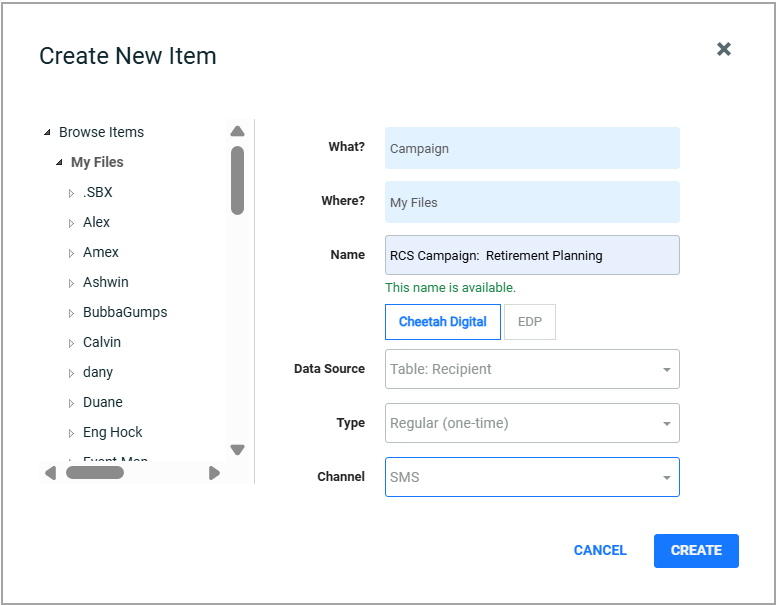
Enter a clear, descriptive name for your campaign.
-
Select:
- The database table that contains your recipients
- The campaign type (Regular, Data-triggered, or Event-triggered)
- SMS as the channel
-
Click Create. The campaign opens in a new tab.
Step 2: Configure the setup
-
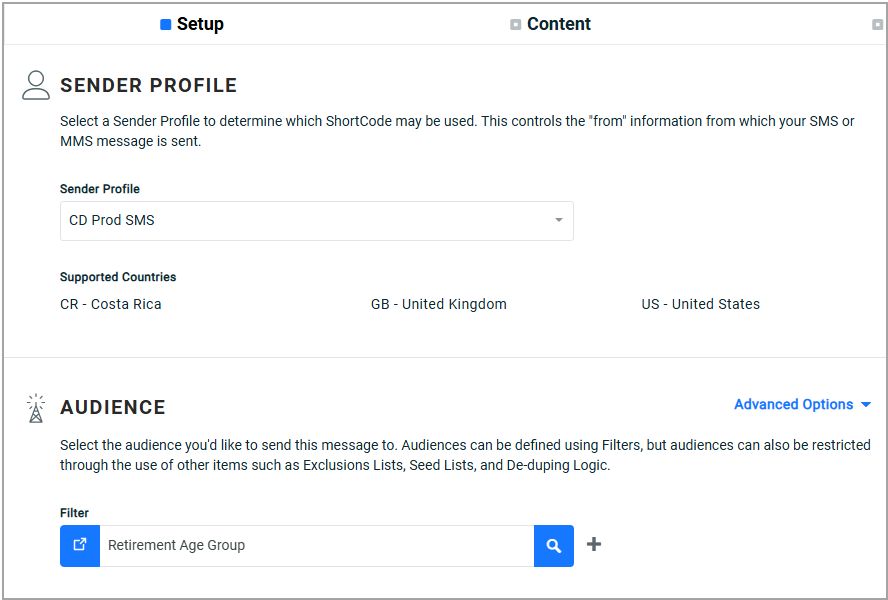
Open the Setup tab.
-
Select your Sender Profile. Make sure the profile is enabled for RCS messaging.
-
Select the Audience you want to target.
Tip: If your audience is smaller than expected, review your filters to confirm they match your intended segment.
Step 3: Add RCS content
-
Go to the Content tab.
-
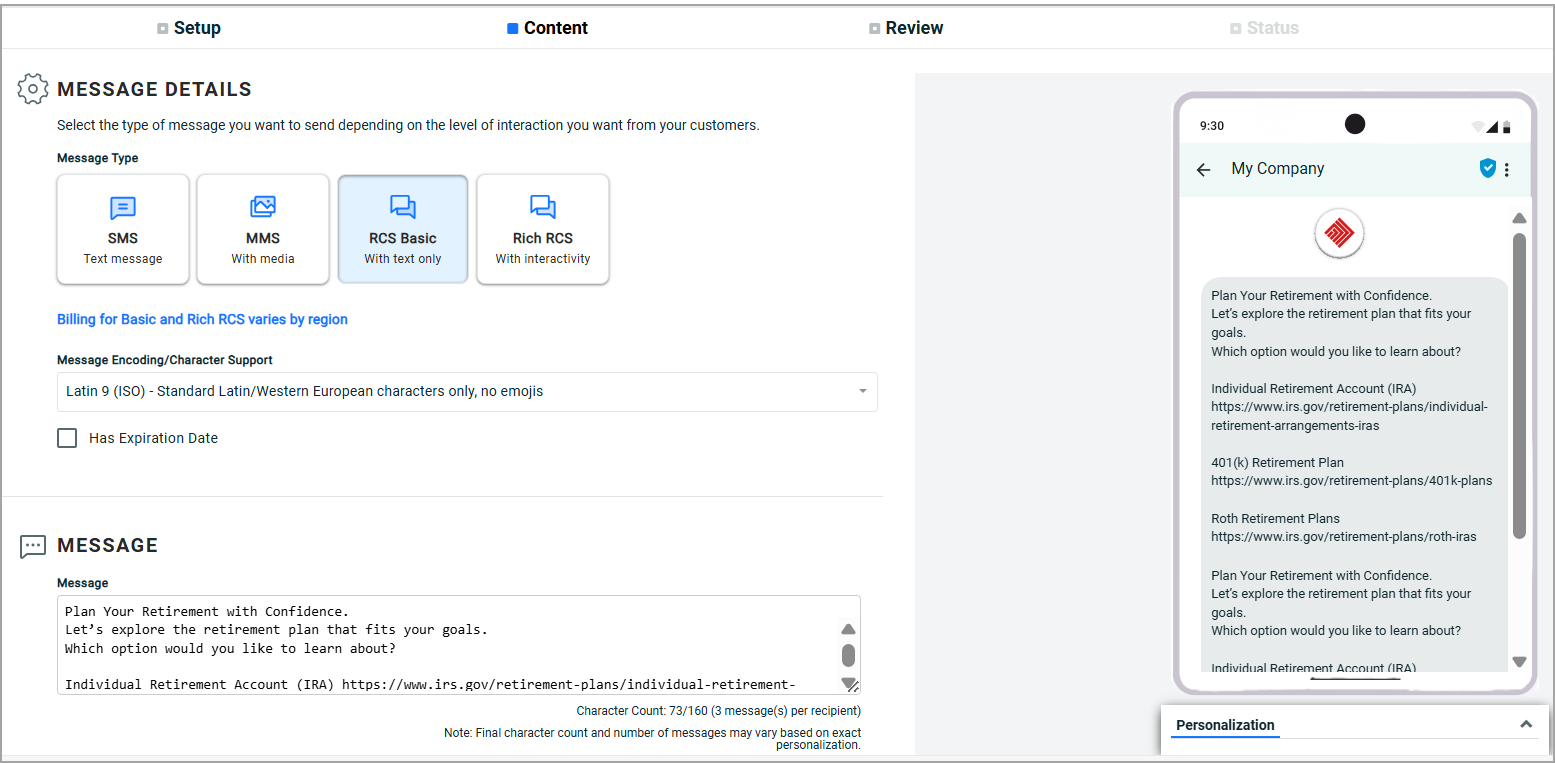
Select Basic RCS.
-
Choose the Encoding type for your message.
-
Set an expiration date if your message is time-sensitive.
-
In the Message field, enter your text and include the URLs you want recipients to visit. The preview of your message is displayed on the right side of the screen.
Specifications
Specification Details Maximum length
160 characters
Media support
Not supported
Best practices
- Keep messages concise and easy to scan
- Prioritize the most important information first
- Use suggested replies or actions when you want recipients to respond quickly.
This example includes a short introduction to retirement planning options and separate links directing recipients to more details about each option.
Tip: Keep your message concise and action-oriented to encourage engagement.
Note: See other use cases to learn how to add rich RCS messages.
Step 4: Review the preview
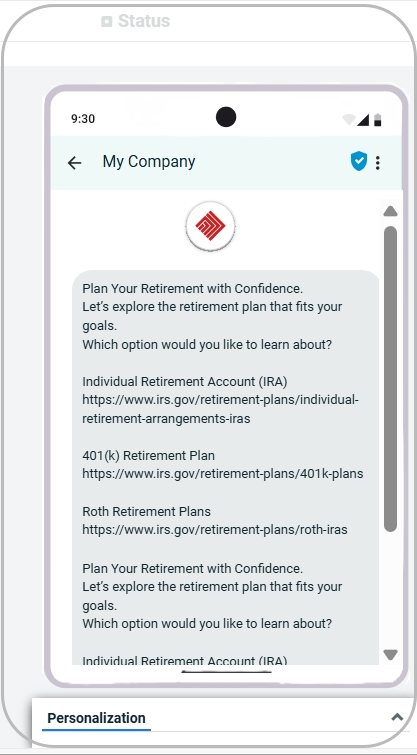
As you add content, the preview panel updates to show how the content will appear to users.
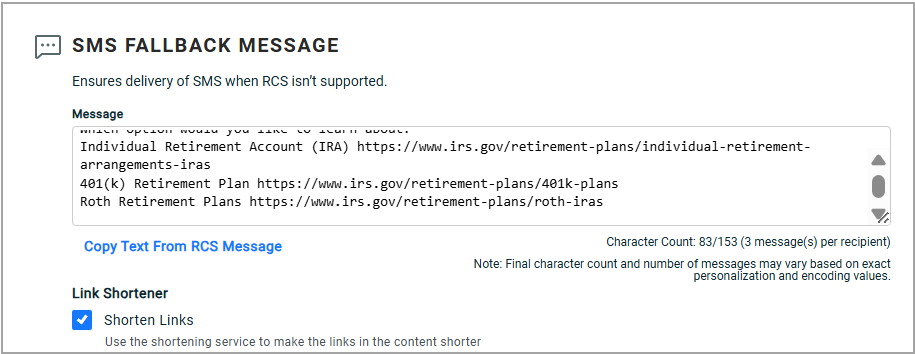
Step 5: Configure fallback messaging
Not all recipients can receive RCS messages. To ensure delivery:
- Enter an SMS fallback message, or
- Click Copy Text from RCS Message to reuse the same content.
This ensures your message still reaches recipients who do not support RCS.
Step 6: Enable link shortening and tracking
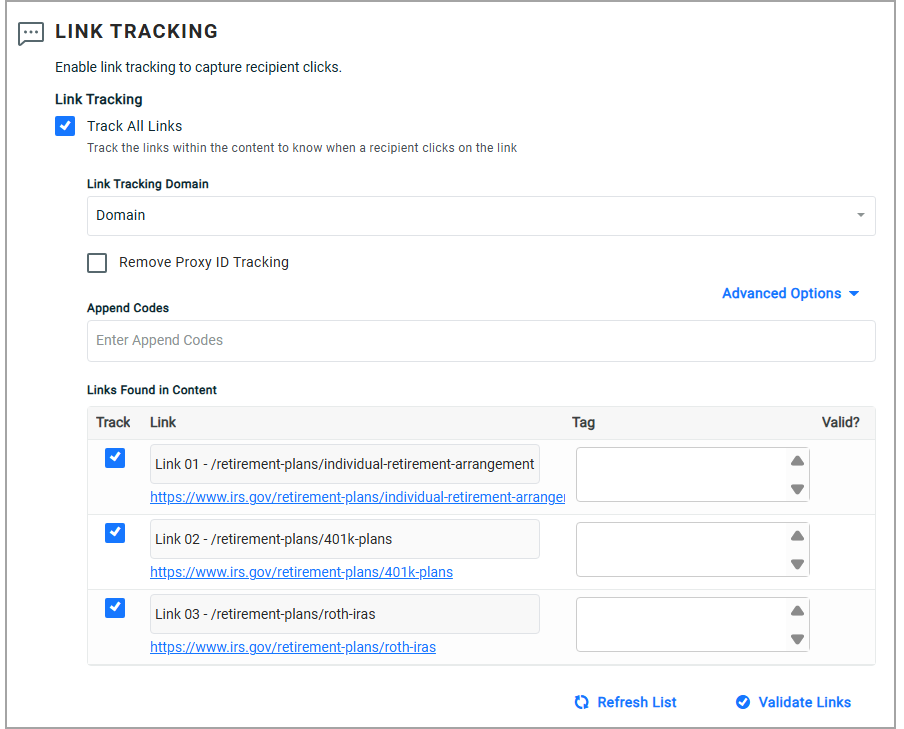
To improve performance tracking and user experience:
- Select Shorten Links to reduce URL length.
- Select Track All Links to monitor when recipients click your links.
Tracking helps you measure engagement and understand which content drives the most interest.
Step 7: Review and schedule
-
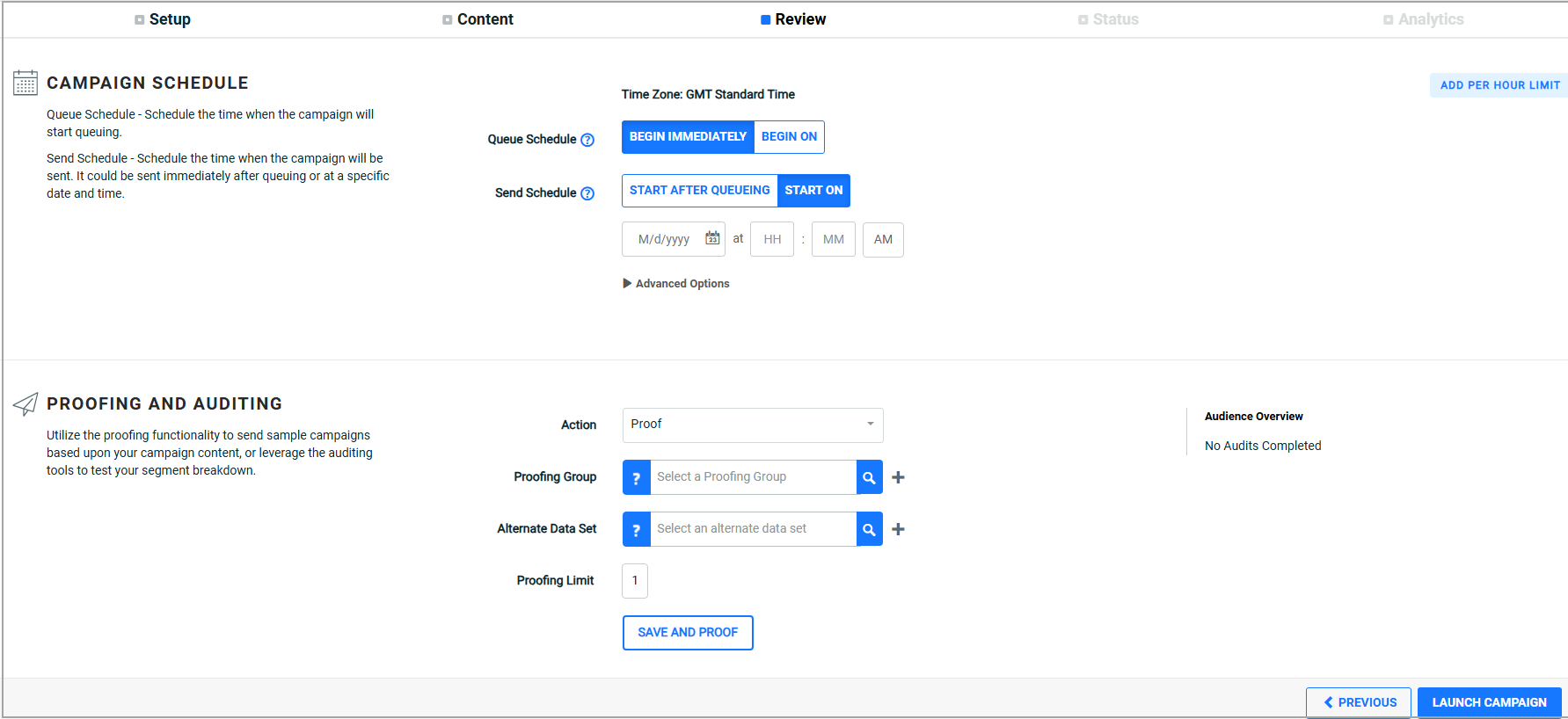
Open the Review tab.
-
Choose when the campaign should:
- Start queuing (immediately after creation or at a specific date and time)
- Be sent (immediately after queueing or at a specific date and time)
Optional:
- Use Proofing to send a sample message.
- Use Audit to review your segment breakdown before launch.
Taking a few minutes to review helps prevent delivery issues and ensures your audience receives the correct message.
It is recommended that you use the proofing functionality and send a test message to yourself before sending your campaign. Always send proofs to both iOS and Android devices, as the same message can display differently in these devices. Review the appearance and content on each device, and adjust your message where necessary to ensure the best possible experience for recipients.
Step 8: Launch the Campaign
When you’re ready, click Launch Campaign at the bottom of the screen.
Your campaign will begin according to the schedule you selected.
By enabling link tracking, you can identify which retirement options generate the most interest and follow up with more personalized communication.
Related considerations
- Use clear, benefit-focused messaging to increase click-through rates.
- Keep URLs relevant and aligned with your campaign goal.
- Test your message using Proofing before sending to a large audience.
If you encounter any issues with RCS delivery, review your Sender Profile configuration or confirm that RCS is enabled for your account.